A budget is a plan you write down to decide how you’ll spend your money each month.Source 1 A budget template gives that plan a ready-made shape: a place for your income, a line for every kind of expense, and columns to compare what you planned with what you actually spent.
Our free template follows the routine the Federal Trade Commission recommends: make a plan at the beginning of the month, write down what you spend each day, and at the end of the month see whether you spent what you planned. Then use what you learned to plan the next month.Source 1
Free printable
Three pages: a monthly budget with planned and actual columns, a page for bills that aren't monthly, and a spending tracker. Sized for US Letter paper.
Download the PDF(3 pages, 275 KB)
What’s in the template
- Income. Your take-home pay and any other money coming in, planned and actual.
- Every expense, grouped. Fifteen categories in three groups (needs, wants, and savings and extra debt payments), with a blank line in each group for anything else. They’re the same categories as our Monthly Budget Calculator, so you can plan in the calculator and track on paper.
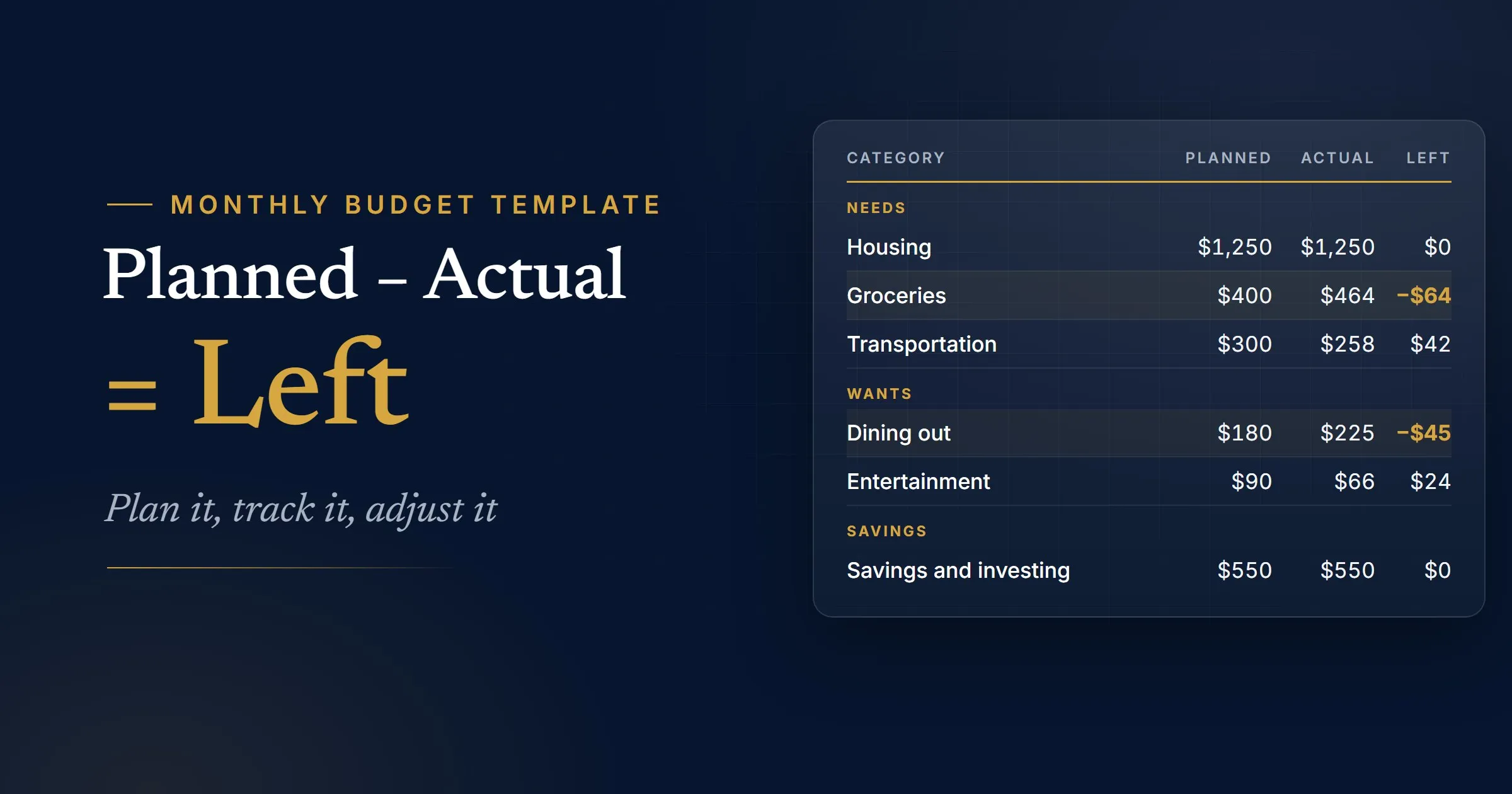
- Planned, actual and left. Fill in Planned before the month starts and Actual at the end. Left is planned minus actual, so a minus sign shows a category that went over.
- The bottom line. Left to assign is your income minus everything you planned. Left over is your income minus what you actually spent.
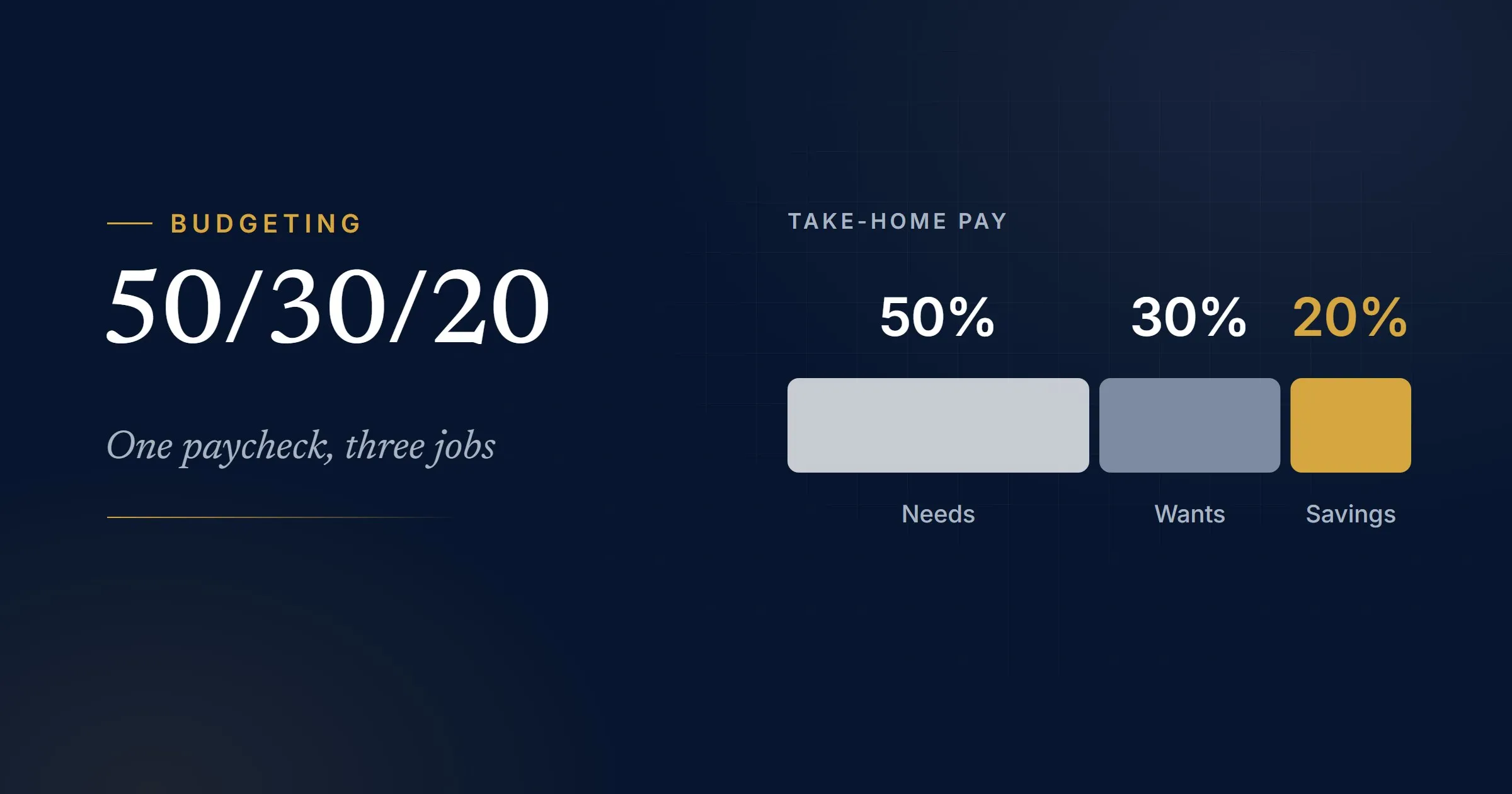
- A 50/30/20 check. Each group’s share of your income, next to the 50/30/20 rule’s guide.
- Bills that aren’t monthly. A page for costs that come once or twice a year, turned into an amount to set aside each month.
- A spending tracker. A page to write down what you spend each day, so filling in the Actual column is quick.
How to fill in the template
- Start with your take-home pay. That’s what lands in your account after taxes and other deductions. If you’re paid every two weeks, multiply one paycheck by 26 and divide by 12. If you don’t earn the same amount every month, add up your income from last year and divide by 12 to estimate a monthly figure.Source 1
- Plan every category before the month starts. Use last month’s bank and card statements to see what you really spend. Our step-by-step budgeting guide shows how to sort a month of spending into categories.
- Give every dollar a job. Subtract your planned total from your income. If the result is below zero, you’re planning to spend more than you make, so look for things you can change.Source 1 If money is left, assign it, for example to savings or extra debt payments, until Left to assign reaches $0.
- Write down what you spend. Choose a way to track spending that’s easy for you, such as a daily journal or a folder of receipts you review at the end of each week.Source 2 The spending tracker page works for this, and so do your bank and card statements.
- Compare at the end of the month. Add up what you spent in each category, fill in the Actual and Left columns, and use what you see to plan next month.Source 1
A filled-in example
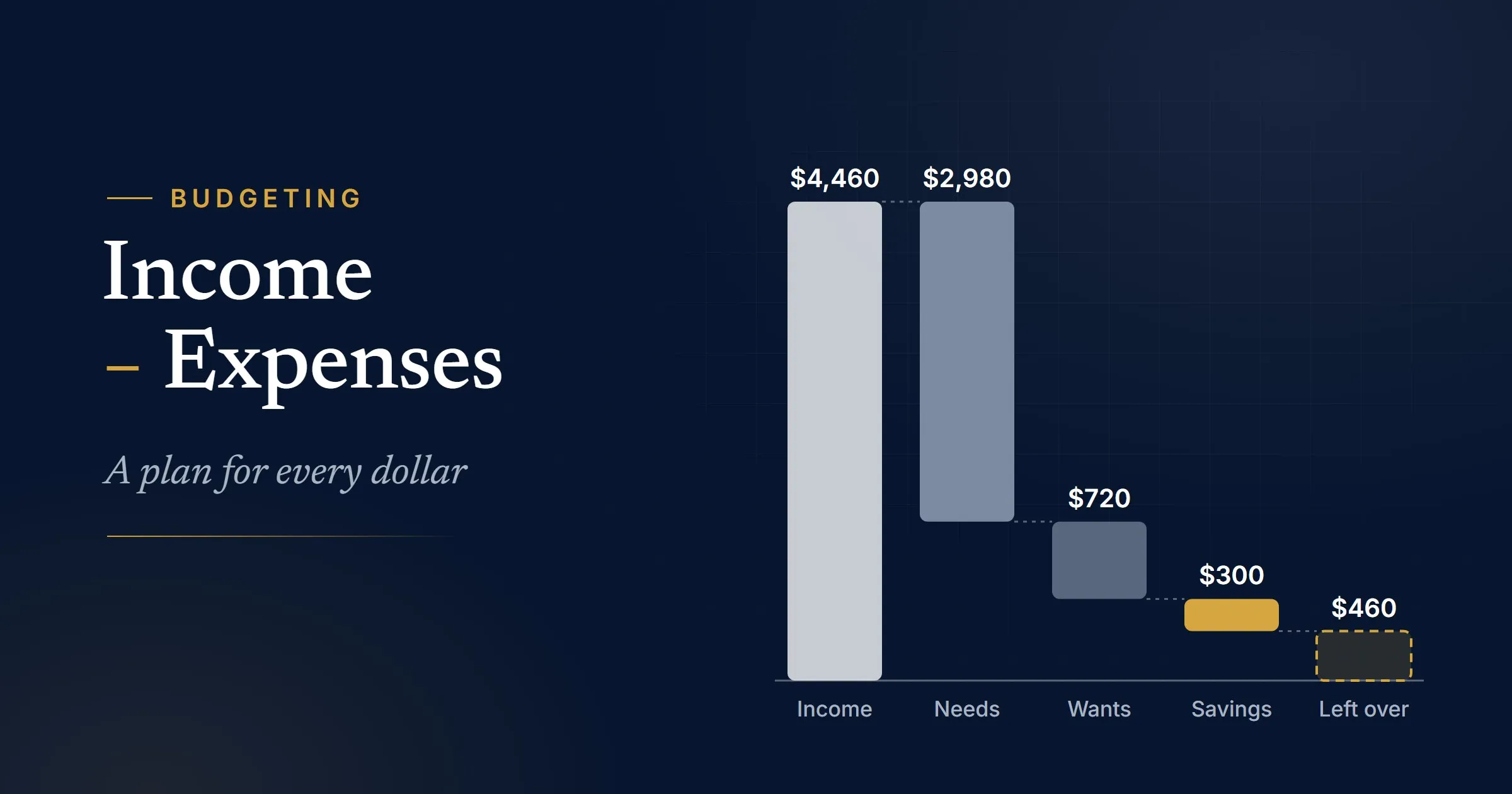
Here’s one month for someone who takes home $3,800 a month. They planned all of it, so Left to assign came to $0. At the end of the month, they filled in what they’d actually spent:
| Category | Planned | Actual | Left |
|---|---|---|---|
| Housing | $1,250 | $1,250 | $0 |
| Utilities and phone | $210 | $192 | $18 |
| Groceries | $400 | $464 | −$64 |
| Transportation | $300 | $258 | $42 |
| Insurance | $140 | $140 | $0 |
| Health care | $80 | $25 | $55 |
| Minimum debt payments | $150 | $150 | $0 |
| Dining out | $180 | $225 | −$45 |
| Entertainment | $90 | $66 | $24 |
| Shopping and personal | $160 | $191 | −$31 |
| Travel and gifts | $100 | $100 | $0 |
| Other wants | $40 | $23 | $17 |
| Savings and investing | $550 | $550 | $0 |
| Extra debt payments | $150 | $150 | $0 |
| Total | $3,800 | $3,784 | $16 |
Left is planned minus actual; a minus sign means the category went over. Childcare and school isn't shown because it's $0 in this example.
Three categories went over: groceries by $64, dining out by $45 and shopping by $31, or $140 in all. Other categories came in $156 under, mostly health care and transportation, so the month ended $16 under plan. That’s what the Total row shows: they planned $3,800 and spent $3,784.
The planned split was 67% for needs, 15% for wants and 18% for savings and extra debt payments. Needs are well above the 50/30/20 rule’s guide of 50%, mostly because of housing. Our 50/30/20 guide covers what to do when needs run high.
What to do with the Left column
The Left column turns a budget into feedback. Here’s how to read it:
- A category went over once. Cover it from a category with money left this month, and move on. A single month over isn’t a problem.
- A category goes over every month. Your plan for it is too low. Raise it, and lower something else so the budget still balances. Looking closely at your spending is also the easiest way to find areas where you can cut back.Source 2
- Money is left over. You can put leftover money into savings every month.Source 1
In the example, the $16 left over could go to savings. And if groceries run over again next month, the plan for groceries should go up, with dining out or shopping coming down to match.
Plan for bills that aren’t monthly
Car registration, insurance paid twice a year and holiday gifts don’t show up every month, so they’re easy to leave out of a budget, and then they wreck the month they’re due. The second page of the template turns each one into a monthly amount to set aside:
| Bill | Yearly cost | Each month |
|---|---|---|
| Car registration | $180 | $15 |
| Car insurance, paid twice a year | $1,080 | $90 |
| Holiday gifts | $600 | $50 |
| Car maintenance | $480 | $40 |
| Total | $2,340 | $195 |
Each month is the yearly cost divided by 12.
Setting aside $195 a month means the money is already there when each bill comes due. You can add it to your budget as its own line, or add each amount to the category it belongs to. Our budgeting guide shows both ways, and our sinking funds guide covers saving for bigger planned costs too.
Timing matters too. If you’re coming up short at the end of the month, your bills and your income may not line up. The Consumer Financial Protection Bureau’s free bill calendar is designed to help you remember when your bills are due.Source 2
Use it with any budgeting method
- The 50/30/20 rule. Fill in the 50/30/20 check: divide each group’s planned total by your total income. The 50/30/20 guide explains each group and what to do when your split doesn’t match.
- A zero-based budget. Keep assigning money until Left to assign is exactly $0, as in the example above. Our zero-based budgeting guide explains the method step by step.
- Budgeting by paycheck. If you’re paid every two weeks or twice a month, note next to each bill which paycheck will cover it, based on its due date. A bill calendar makes this easier.Source 3 Our budget by paycheck guide walks through a biweekly example.
- Cash envelopes. Each planned amount becomes the cash you put in an envelope for that category, and the Left column is what’s still in the envelope.
How to make a budget spreadsheet in Excel or Google Sheets
You can build the same template in a spreadsheet in a few minutes. These formulas work in both Excel and Google Sheets:
- Set up five columns: Category, Group, Planned, Actual and Left. Put the headings in row 1 and your 15 categories in rows 2 to 16. In the Group column, type Needs, Wants or Savings for each one.
- Work out what’s left in each category. In E2, enter
=C2-D2, then fill it down to E16. - Add a Total row. In C17, enter
=SUM(C2:C16), then fill it right to E17. - Add the bottom line. Put your monthly income in H2. In H3,
=H2-C17gives Left to assign; in H4,=H2-D17gives Left over. - Add the 50/30/20 check.
=SUMIF(B2:B16,"Needs",C2:C16)/H2adds up the planned amounts in rows marked Needs and divides by your income. Format the cell as a percentage, and repeat with “Wants” and “Savings”. SUMIF adds the values in one range whose matching cells in another range meet the condition you set.Source 4 Google Sheets’ SUMIF works the same way.Source 5 - Flag overspending. Select E2:E16 and add a conditional formatting rule for values less than 0. In Excel, it’s on the Home tab: Conditional Formatting, then Highlight Cells Rules.Source 6 In Google Sheets, choose Format, then Conditional formatting, and pick Less than under “Format cells if.”Source 7
- Copy the sheet each month, clear the Actual column, and adjust the plan.
Want a head start? Fill in the Monthly Budget Calculator and choose Download CSV. The file opens in Excel or Google Sheets with every category, its group and its monthly amount already filled in, so you only need to add the Actual and Left columns.
Free budget worksheets from the government
If you’d like other printable forms, two federal agencies offer them free:
- The FTC’s Budget Worksheet on consumer.gov is a free PDF: fill in how much money you make, then your expenses, and subtract your expenses from your income.Source 8
- The CFPB’s Your Money, Your Goals toolkit has fillable PDF tools, including a spending tracker, a bill calendar, an income and benefits tracker and a cash flow budget.Source 3
Common questions
What should a monthly budget template include?
Your take-home income, every expense grouped into categories, columns for what you planned and what you actually spent, and a bottom line that shows whether your income covers it all. A good template also has room for bills that don’t come every month.
What’s the best budget template for beginners?
The one you’ll keep using. A simple template with a dozen or so categories is easier to stick with than one with dozens of lines. Start with ours or the FTC’s worksheet,Source 8 and add detail only where you need it.
Can I use this template in Excel or Google Sheets?
Yes. Follow the spreadsheet steps above to build it in a few minutes, or start from the Monthly Budget Calculator’s CSV download, which opens in either one.
How do I make a zero-based budget template?
Use any template with a Left to assign line: your income minus everything you’ve planned. Keep giving money a job, such as savings or extra debt payments, until that line reaches $0.
How often should I update my budget?
Plan each month before it starts and compare at the end.Source 1 Also update your budget when something changes, such as your job or your spending habits.Source 2
What if my income changes every month?
Plan around a cautious estimate, such as your income from last year divided by 12,Source 1 and fill in the Actual column with what you really earned. When a month brings in more than you planned, decide in advance where the extra goes, such as savings. Our guide to budgeting on an irregular income shows how to pay yourself a steady amount each month.
Run your own numbers
See where your take-home pay goes each month.
Open the calculator
Sources
Numbers in the text link to these sources. We check them whenever we update this page.
- 1
Making a Budget(external site)
Federal Trade Commission, consumer.gov · Accessed November 18, 2026 · Back to text for source 1
- 2
Budgeting: How to create a budget and stick with it(external site)
Consumer Financial Protection Bureau (archived blog post) · Published June 5, 2019 · Accessed November 18, 2026 · Back to text for source 2
- 3
Your Money, Your Goals toolkit(external site)
Consumer Financial Protection Bureau · Updated April 24, 2026 · Accessed November 18, 2026 · Back to text for source 3
- 4
Microsoft Support · Accessed November 18, 2026 · Back to text for source 4
- 5
Google Docs Editors Help · Accessed November 18, 2026 · Back to text for source 5
- 6
Use conditional formatting to highlight information in Excel(external site)
Microsoft Support · Accessed November 18, 2026 · Back to text for source 6
- 7
Use conditional formatting rules in Google Sheets(external site)
Google Docs Editors Help · Accessed November 18, 2026 · Back to text for source 7
- 8
Budget Worksheet(external site)
Federal Trade Commission, consumer.gov · Accessed November 18, 2026 · Back to text for source 8
About the author
Wealthistry Editorial Team
Research, writing and editing
The team that researches, writes, fact-checks and updates Wealthistry's guides and calculators, following our published editorial standards.
Author profileEditorial policyHow we researchReport an error